We do not have nor willing to use MS InfoPath as this is being depreciated by Microsoft so I decided to use a standard document library with adequately configured views to categorise the content.
Only one SharePoint group, (site collection members) were to be allowed to edit server copies of the template documents and forms.so they are always approved and published for the rest of the business.
Ordinary users would just download the documents to their local systems so they can be filled out and saved back to relevant SharePoint library or elsewhere on the File Server with the file names changed by users.
The problem I faced was that when it comes to the default behaviour for opening documents in SharePoint, it is done for the whole web application- not a particular library. Our environment is configured to open documents in client applications and web app settings are set to 'Permissive'.
Furthermore, our IE11 and registry settings are as follows:
1. SharePoint sites added to Trusted Sites in IE Internet Options - > Security - > Trusted Sites
2. 'Require server verification (https:) for all sites in this zone' cleared under Trusted Sites
3. Trusted sites - > Custom Level - > User Authentication - > tick 'Automatic logon with username...'
4. IE Internet Options - > Connections - > LAN Settings - > clear 'Automatically detect settings'
5. Local machine registry edit according to http://support.microsoft.com/kb/943280
Above settings allow seamless interaction with SharePoint documents, no annoying log in prompts or security warnings. Once a user clicks on a document, a relevant MS Office application fires and allows to Check Out and edit the content of the server document and/or its properties in a Document Information Panel:

Obviously, users who do not have permissions to edit a document (e.g. Contribute permission) will still see the same interface with a 'Check Out' button as above.
If they attempt to edit a server copy by 'Checking Out' the document, they will first see a log in dialog followed by a green bar showing that the file is being checked out. This bar will not stop unless we click OK.

Upon clicking 'OK', we can try to input our login credentials to the SharePoint portal 3 times. Remembering credentials will not help. We will be presented with the following error:
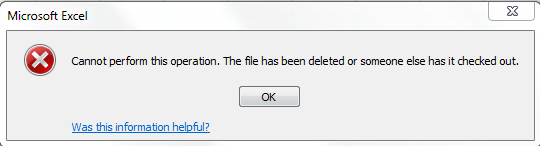
Once we click 'OK' there, we can edit the file as we wish, then click 'Save' or 'Save As' to get an option (dialog) to save the file somewhere where we have rights to write:

Can Microsoft provide a simple message saying: 'You do not have permission to edit a server copy' rather than trying to log you into something you cannot access and then give you a wrong message about the file being deleted or checked out by someone else? Perhaps not. This issue has been around for years. Permission error is only displayed when you try to write to SharePoint using Windows Explorer as far as I remember.
As you can imagine, although our server documents were secured with correct permissions, they were subject to those confusing pop-ups, error messages and countless amount of clicks. This was not acceptable as a procedure to download and fill out business forms corporate templates.
I had a thought to rely on users for a while hence I provided nice guides how to download and edit documents. For the Quality department (templates' controllers) I provided a separate guide how to edit , approve and publish server copies.
Whoever works or worked in the world of IT probably knows that if we can program something, it is best to do it. Relying on users to remember things and most importantly- follow guides is not always a good practice.
I came up with a specific requirement to:
1. Leave our default 'Open documents in client application' setting as it was, whether on Web App or Document Library level.
2. Target just this specific library to:
a) Open a file as above in client application (server copy that can be checked out, edited, checked in, approved and published) if the logged in user belongs to the site collection members' group (Quality Department)
b) Force the browser's download dialog when a logged in user clicks on the document link and a logged in user does not belong to the site collection members group
Since I successfully implemented jQuery and SPServices in my SharePoint environment before, I knew I could use them to accomplish what I want.
Basically, what I did in my code was to check whether the current logged in user IS NOT a member of the site collection members' group with SPServices. If this was true (user not a member of the group), I have overridden default browser's behaviour and called a sharepoint 'download.aspx' page (same as the one when you click 'Download a Copy' on sharepoint Library ribbon). See the complete code below:

Note, in my case the group that have 'Check Out' permissions is called 'UK QHSE Members'.
Since I have multiple views for this very same library, I needed to add the script (Edite Page - > Add Webpart - > choose Script Editor - > Edit Snippet - > Paste the same code there - > Stop editing) on each page of each view.
The result:
Ordinary user clicks a link of the file:

and they are presented with an 'Open or Save As' dialog. Currently in IE11 the dialog looks like the one above. If they click 'Open', they will edit a local copy of the file stored in Internet Temporary Files.

Please note that although it is a local copy of the document, the Document Information Panel listing the document's properties is still visible.

Upon saving the document, users would just have to confirm that they have worked on a Read-only copy and now they want to save the document for which a relevant dialog windows is displayed.

On the other hand, when a site collection group member comes along and clicks on a file name, a respective Office application will launch:

and they will get a 'Check Out' option to work with a server copy of the document:

If a site collection group member would need to just fill out the form (not edit the server copy), they will be trained NOT TO Check-Out the file but edit it straight away and save it where they want. They would obviously not see login prompts, any checking out file bar or anything like that since they have full rights to the library. Upon saving the file, they will see a standard 'Save As' dialog to specify a saving location.
I realise this is a very bespoke requirement but I hope it helps anyone out there!
cheers!

