Another day in working on a production SharePoint 2013 for the real company and we have some more issues! As expected!
For some reason, after a successful publish of a content type from my Content Type Hub site collection to a subscribing site collection (see my last blog post), I encountered a strange problem.
Namely, the site column which I created and included in my content type happened to be a Managed Metadata column. After configuring it to be included in a Document Information Panel and upon opening a document form a library, the office applications (Excel, Word...) were crashing. This was happening while the Document Information Panel was trying to load.
For testing purposes, I deleted a Metadata Column from the content type, later deleted content type from the Document Library and documents were opening.
I could not afford to not have a Managed Metadata column in my library therefore I had to find a solution to get it working.
The first, immediate thought that came to my mind was: Because I have MS Office 2010 and SharePoint Designer 2013 installed on my machine, I knew this can cause issues. (You have to use SharePoint Designer 2013 if you are working on SharePoint Server 2013). Both Office 2010 and SharePoint Designer are 32-bit software, otherwise they will not work. I tried to go to:
Control Panel -> Programs and Features -> Click on MS Office 2010 -> Change -> Repair!
You restart the computer and it all works! The Document Information Panel loads in successfully with Managed Metadata Column in it.
Stay tuned for more issues with bloody Sharepoint!
Wednesday, 24 July 2013

Tuesday, 23 July 2013
SharePoint 2013 Content Type Publishing Proxy Error
When you provision one of the Site Collections to be your Content Type Hub for the whole farm so the other site collections (and even Web Applications) can subscribe to it to consume enterprise-wide Content Types- you may encounter an error: 'No valid proxy can be found to do this operation- publishing of content type'
As per the Steve Chen's blog post, this is due to:
a) Wrong URL settings on the managed meta data service application.
- The content type hub was set on URL http://sp2k10a/sites/CTHUB/SitePages/Home.aspx
- This URL was also set in the MMS app
b) Missing entry in the AAM’s
- The MMS web service was listening on address http://hostname:32843/... But in AAM settings we only had a map to http://hostname:4000 which is the CA
The solution to tackle this issue is (depending on where you already are with your scenario) to:
1. In your Content Type Hub site collection- create some site columns you wish to include in a content type;
2. Create a desired Content Type and add newly created column(s);
3. In a newly created Content Type settings, try to publish- received error? Read on...
4. Go to Central Administration -> Application Management -> Manage Service Applications and highlight 'Managed Metadata Service' [top link above Managed Metadata Service Connection]
5. Once highlighted, click 'Properties' on the ribbon and scroll down towards the end of page
6. Input the URL of your Content Type Hub Site Collection making sure you exclude /sites/home.aspx or any other suffix after the domain name.
Make the URL look like http://intranet.domain.com
.PNG)
7. Check 'Report syndication...' and click OK.
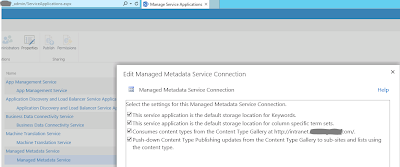
8. Being back on the Service Application page, highlight a 'Managed Metadata Service Connection' and click 'Properties' on the ribbon
9. Check the 'Consume Content Types from the Content Type Gallery at...'
10. Go to Central Administration -> Monitoring -> Review Job Definitions;
11. For 'Content Type Hub' and 'Content Type Subscriber' [subscriber for a required Web App], run the jobs immediately to push all of the changes:

As per the Steve Chen's blog post, this is due to:
a) Wrong URL settings on the managed meta data service application.
- The content type hub was set on URL http://sp2k10a/sites/CTHUB/SitePages/Home.aspx
- This URL was also set in the MMS app
b) Missing entry in the AAM’s
- The MMS web service was listening on address http://hostname:32843/... But in AAM settings we only had a map to http://hostname:4000 which is the CA
The solution to tackle this issue is (depending on where you already are with your scenario) to:
1. In your Content Type Hub site collection- create some site columns you wish to include in a content type;
2. Create a desired Content Type and add newly created column(s);
3. In a newly created Content Type settings, try to publish- received error? Read on...
4. Go to Central Administration -> Application Management -> Manage Service Applications and highlight 'Managed Metadata Service' [top link above Managed Metadata Service Connection]
5. Once highlighted, click 'Properties' on the ribbon and scroll down towards the end of page
6. Input the URL of your Content Type Hub Site Collection making sure you exclude /sites/home.aspx or any other suffix after the domain name.
Make the URL look like http://intranet.domain.com
.PNG)
7. Check 'Report syndication...' and click OK.
8. Being back on the Service Application page, highlight a 'Managed Metadata Service Connection' and click 'Properties' on the ribbon
9. Check the 'Consume Content Types from the Content Type Gallery at...'

11. For 'Content Type Hub' and 'Content Type Subscriber' [subscriber for a required Web App], run the jobs immediately to push all of the changes:

12. Now, go back to your Content Type Hub Site Collection and re-attempt to publish a content type in question;
13. No errors? If you still see some error, most likely you need to correct your URL to make sure it has nothing after 'domain.com'.
14. Navigate to any other site collection -> Site Settings -> Site Content Types and verify a newly published content type is there!
Regards
Thursday, 18 July 2013
SharePoint 2013 New file cannot be saved to a destination library
When SharePoint site is added to the trusted sites in IE and Trusted Sites' custom level includes 'Automatic logon with current user name and password' (see one of my previous posts), we might have messed up something in SharePoint - Office client association. Or maybe it is a Microsoft's bug on certain clients?
The situation is that when you click on a file already in the library to edit/open it- it opens up nicely in the client application without asking for credentials. Depending on the Library Settings, if you want to edit it, you might Check Out the file. We are fine here.
Similarly, when you Upload a file from your local machine into the Document Library, it is done without any problems (however it will not let you save the file under the name that already exist in the library unless you check to add another version of it). In that case users must ensure they upload files with names already changed!
Our real problem is when we click 'New Document', we are being re-directed to the client application based on the Library template, we create/edit the file, want to save it back to the Library and then - BOOM! Cannot do it! Client application offers to save the file locally and when you click 'Save & Send' to save it to a selected SharePoint Library- you will see a fancy error message 'Cannot save to: http://intranet.company.com' or something like that.
In order to fix that, you have to enable a WebClient service in Windows Services as per this blog post. On my machine (happens to be a Windows Server 2012 Datacenter) it is well hidden and it s called a Desktop Experience, see picture below:

Note You have to restart the WebClient service after you modify the registry.
The situation is that when you click on a file already in the library to edit/open it- it opens up nicely in the client application without asking for credentials. Depending on the Library Settings, if you want to edit it, you might Check Out the file. We are fine here.
Similarly, when you Upload a file from your local machine into the Document Library, it is done without any problems (however it will not let you save the file under the name that already exist in the library unless you check to add another version of it). In that case users must ensure they upload files with names already changed!
Our real problem is when we click 'New Document', we are being re-directed to the client application based on the Library template, we create/edit the file, want to save it back to the Library and then - BOOM! Cannot do it! Client application offers to save the file locally and when you click 'Save & Send' to save it to a selected SharePoint Library- you will see a fancy error message 'Cannot save to: http://intranet.company.com' or something like that.
In order to fix that, you have to enable a WebClient service in Windows Services as per this blog post. On my machine (happens to be a Windows Server 2012 Datacenter) it is well hidden and it s called a Desktop Experience, see picture below:

It resolved the problem of not saving a file into the library the request of a new file originated from. Well. partially. Now SharePoint wants to authenticate you before it saves your file!
You remember we added our intranet to the trusted sites (you can leave in your intranet zone, whatever- it is after all a browser, not SharePoint configuration. The best way is to have a play and see which configuration- Intranet Zone or Trusted Sites works best). But why MS Office applications installed locally want credentials to upload files back to SharePoint? Microsoft says- "it is our fault" on Vista and 7 and they provide a hotfix.
In short, you have to add a registry value to your local registry (on a machine with Office Applications installed through which you are accessing SharePoint sites). Perform:
#################################################################################
- Click Start, type regedit in the Start Search box, and then press ENTER.
- Locate and then click the following registry subkey:HKEY_LOCAL_MACHINE\SYSTEM\CurrentControlSet\Services\WebClient\Parameters
- On the Edit menu, point to New, and then click Multi-String Value.
- Type AuthForwardServerList, and then press ENTER.
- On the Edit menu, click Modify.
- In the Value data box, type the URL of the server that hosts the Web share, and then click OK.
Note You can also type a list of URLs in the Value data box. For more information, see the "Sample URL list" section in this article. - Exit Registry Editor.
After this registry entry is created, the WebClient service will read the entry value. If the client computer tries to access a URL that matches any of the expressions in the list, the user credential will be sent successfully to authenticate the user, even if no proxy is configured.
Note You have to restart the WebClient service after you modify the registry.
Sample URL list
The following is a sample URL list:
https://*.Contoso.com
http://*.dns.live.com
*.microsoft.com
https://172.169.4.6
This URL list enables the WebClient service to send credentials through the following channels.
Copyright Microsoft Corporation
#################################################################################
You can use your Group Policy to apply the fix and add your intranet website to trusted sites in IE.
Stay tuned for new updates in SharePoint 2013 in production!
SharePoint 2013 Navigation options
Ok, the time has come to provide some global navigation links to the users of our pilot site.


The immediate thought is to use Metadata Navigation- one of the great features in SP2013 (ease of use, ease of management and consistency).
Unfortunately, in my scenario, not every user will have read access to every site/page/library in my site collection. Managed Metadata Navigation- as of 18/07/2013 does not provide security trimming! What is the point of users being able to see links to resources they cannot see? When they click on one of the links they do not have right to access, they will see an 'Access denied aspx'. I have a strange feeling that they will not like this.
According to one saying: 'Out of sight, out of mind'- we will have to stick to hard-coding our links in headers in Site Settings -> Navigation (in order to see this link in Site Settings you have to activate Publishing Infrastructure Features both in Site collection and site levels):

Unlike with using Metadata Navigation (up to 3-tier dynamic menu allowed), we will be limited to Headers (links of their own) and Links below them (2-tier dynamic menu):

Wednesday, 17 July 2013
SharePoint 2013 Disable Prompts for User Credentials when opening Office files
Probably most of us have experienced this! Very annoying!
The solution is to:
IE -> Tools -> Internet Options -> Security Tab -> Click on 'Local Intranet' -> Sites -> Make sure that 'Automatically detect intranet network' is checked.
Now switch to 'Trusted sites' -> Sites -> add your intranet site [if having one web application like me, just add the domain root e.g. http://intranet.company.com].
Staying in 'Trusted sites', click on 'Custom level...', scroll down to the bottom and check 'Automatic logon with current user name and password' as in picture below:

Annoying pop-ups for user credentials should no longer be coming up!
The solution is to:
IE -> Tools -> Internet Options -> Security Tab -> Click on 'Local Intranet' -> Sites -> Make sure that 'Automatically detect intranet network' is checked.
Now switch to 'Trusted sites' -> Sites -> add your intranet site [if having one web application like me, just add the domain root e.g. http://intranet.company.com].
Staying in 'Trusted sites', click on 'Custom level...', scroll down to the bottom and check 'Automatic logon with current user name and password' as in picture below:

Annoying pop-ups for user credentials should no longer be coming up!
Friday, 12 July 2013
SharePoint 2013 Hiding Site Collection Home Tabs
If you have a Site collection's logo in a top left hand corner, it works as a link to the Home Page.
Further, if you require a number of links to other sites in your top navigation menu, you could actually do with hiding this name tab menu so you have more room for adding links to the top navigation bar.

As per suggestions as well as due to my previous experience with SP2010 Server, I tried to edit a core CSS file by adding the following code to it.
.s4-tn li.static $gt; a{
display: none !important;
}
.s4-tn li.static $gt; ul a{
display: block !important;
}
It worked like a charm in SP2010. In SP2013 it did not for me!
So I injected a following javascript into the page in Content Editor Web Part:

-where 'UK Accounts' was used instead of 'Home' as it is the name of my first home tab to hide. This approach is just looking for a text on the page and it hides it. You probably gather, it has some disadvantages too.


 Just in case, I posted in an MS SharePoint forum to ask whether there is someone out there willing to help explaining the CSS route as opposed to Javascript for hiding a home tab in SP2013. I also highlighted disadvantages of using javascript in my scenario. Read my comment to the first reply in the thread.
Further, if you require a number of links to other sites in your top navigation menu, you could actually do with hiding this


-where 'UK Accounts' was used instead of 'Home' as it is the name of my first home tab to hide. This approach is just looking for a text on the page and it hides it. You probably gather, it has some disadvantages too.

As you can see in the picture above, the phrase/name we are hiding on a page is also removed from Titles of web parts (e.g. Calendar), subjects names of the discussion posts (note a doted red line where 'UK Accounts' is present in the main body of a post- just the subject title is removed).
Overall, it is not very good approach don't you think? Especially when the phrase 'UK Accounts' may be used for other objects available on that page.
Going back to the original naming in SharePoint, the word 'Home' sounds like an appropriate word to be used for hiding a root site tab. I do not think users and admins will use this word to refer to any of their work.
So I changed the name of the home page to 'Home', then I modified my javascript to include 'Home' instead of 'UK Accounts'.
This is the result:

Part of the site collection logo contains a reference to the actual site collection so users will always know they are on the 'UK Accounts' pages.
When you dive deeper into the Site Collection pages, respective sites' root pages names would have to stay unchanged. They can no longer be changed to 'Home' because users would again see UK Accounts - Home as opposed to UK Accounts - UK Budget for example on a Logo-Page title level.

Friday, 5 July 2013
SharePoint Server 2013 Blob Cache
According to another very good practice when dealing with SharePoint Server 2013, I increased the size of a BlobCache in every web application and moved the BlobCache file outside the system drive.
In our case, we created an E:\ drive on which we stored our IIS, ULS and Usage logs as well as the Search Index to further ease-off the pressure from C:\.

I also created a 'BlobCache' folder and subdirectories for each web application in the farm, including Central Administration.

Then, I navigated to the web.config file of each web application, and opened it with Notepad.
In each file I pointed to the new directory created and increased the BlobCache size from 10 (GB) to the amount required:

As a side note: I noticed that 'Automatic Updates' were turned off for our Windows 2012 DataCenter.
I turned this on:

Stay tuned for more Sharepoint 2013 in real company!
In our case, we created an E:\ drive on which we stored our IIS, ULS and Usage logs as well as the Search Index to further ease-off the pressure from C:\.

I also created a 'BlobCache' folder and subdirectories for each web application in the farm, including Central Administration.

Then, I navigated to the web.config file of each web application, and opened it with Notepad.
In each file I pointed to the new directory created and increased the BlobCache size from 10 (GB) to the amount required:

As a side note: I noticed that 'Automatic Updates' were turned off for our Windows 2012 DataCenter.
I turned this on:

Stay tuned for more Sharepoint 2013 in real company!
Subscribe to:
Comments (Atom)