Showing posts with label Share Point. Show all posts

Monday, 11 August 2014

Content Query Web Part stopped working

One Monday we have experienced a strange issue with our Content Query Web Part. It was configured to list the files checked out to a logged in user across the whole site collection.
[See this guide on how to accomplish this]
This solution worked for ages for us, but one day- it stopped! What I mean by "it stopped" is- the admin user could still see their results (files checked out to admin) in the web part.
An ordinary user (reader/editor/contributor) had nothing listed in the web part (no results, no error messages, nothing!, even when they had files checked out to them).

I have seen the following threads on the support forum while doing the research:

Content Query WP not showing columns for some users
Some sharepoint actions stopped working
CQWP stops showing results, until it is edited
CQWP - Not returning results after extensive research

but none of them were really applicable.

I have stumbled upon this blog post and learned about LTV's (List Value Threshold).
It is configured under CA/Application Management/Manage Web application.
You click your relevant web application, go to General Settings and click Resource Throttling.


As you can see, the default limit of items that the single database operation can involve at one time is 5000. Since we are querying against the whole site collection, on that Monday we must have exceeded that limit so the web part no longer worked for ordinary users.
As you can see from the screenshot above, the limit for admin users is higher. That explains why the web part worked for admin users.

A few options:
1. Increase the limit (not recommended due to SQL locks and loss of performance) so your web part can query and pick up items.

2. Archive old files so we will remain below the default limit of items.

3. Change the solution, utilise Search web part or something else.


Wednesday, 7 August 2013

SharePoint 2013 Workflow to set Title field automatically

There are times where you need SharePoint to set some properties of the file/item automatically for you. For some scenarios you could use metadata with default values for file/items columns. For other scenarios you need a workflow to populate the item's columns e.g Title.

It could be a variety of reasons why this might be the case.
Some of the reasons could be:

  1. to overcome the limitation of SharePoint losing file/item's built-in properties 'Created', 'Created at', 'Created By' or other metadata on file/item move to another repository
  2. to be able to take advantage of functionality that does not allow use of built-in properties or GUID e.g. Labels in Information Management Policy
In our scenario, users expressed that they want some naming convention for their files. They also mentioned (having worked on a File Server for years) that sometimes they do not know where the file belongs to, who has originated it and how old is the file. Well we cannot rename file names of the files users create/upload into SharePoint. Files can come from the variety of sources. They can be downloaded from other applications with meaningful names already there. We do not want the frustration of users shouting at us saying 'I cannot name the file as I want'.
For this instance, we want something that will happen in the background (on top of the user specifying file's metadata)

To create a 'permanent sticker' that will stay always as an attribute of the file in the Title field, we need to develop a workflow, that will automatically set the item/document's title based on the attributes we want. We do not want the workflow to run on an item/file change since we want to capture its attributes only on creation. This specification can be defined on the Workflow Settings page in SharePoint Designer.

Currently, BoostSolutions offer a similar solution and charge $500 for it. I have developed the workflow myself and it works flawlessly.

If you do not have access to Visual Studio and/or your programming skills aren't very good, you can use SharePoint Designer to achieve what you want. Using SharePoint 2010 Workflow Platform, I developed something like this:


Starting: First, you starting your workflow and logging that the process has actually started (good practice for troubleshooting).

Set global Variables: For our Auto Populated title, we want build-in attributes that can be lost on file migration to be included. Therefore we set up global variables MyCreated to copy Created data and MyCreatedBy to copy Created By attribute. We respectively log this to the workflow history so we know if the steps have actually took place.

Processing: The file created may not have a Title in it (default behaviour). We then want to set the title field to the string: 'Created on Variable:MyCreated by Variable:CreatedBy in specific location'

If the Title is already there (e.g. the file uploaded to SharePoint has a Title already or the user, while creating a file types the title in Document Information Panel), we want this Title to be copied to the workflow's variable and changed to the workflow's variable containing the string we want to appear in the Title field (MyTitle2 in this case).
Similarly, we have to log every action so we know what is happening whilst the workflow is proceeding.

Complete: Then we complete the workflow and log that in the workflow's history.

If for some reason the workflow does not complete, is stalled, stuck at 'Starting', 'Processing' or whatever, click on the link saying 'Starting', 'Processing' etc. and you will be taken to the workflow history.
You will see the respective steps of the workflow as they happen one after the other (since we are logging every step). If you see, that the workflow is not progressing to the next step required in the sequence, then troubleshoot that step in the workflow. After you've done this (or on every update to the workflow), make sure you update and publish the workflow so the changes are pushed down to every list/library associated with this workflow.

In my case, you can see the workflow history logging every step as they should happen:

New File - No Title (default behaviour):


 New File with Title in it or specified by the User on creation:


I tested it with another user too and it worked flawlessly.
Now you can use this workflow as a template or as a global workflow which you can download for every site and use for every list/library you want (amending the string in a Title field to hold info relevant to the location of the file).

Stay tuned for more SharePoint 2013 in practice!

UPDATE:

You will have to update your workflow in order for it to work on 'Check Out-Check In' enabled lists and libraries.
You just need to check out and check in the file in your workflow process. My changes to check out and check in items will be universal as I will modify the workflow commands to apply them to the 'Current Item', so I can use it globally, as opposed to the list the workflow is running on. Here are the steps required to take: [re-blogged from Kim Frehe post available here]:

#################################################################################

A modification to the .xoml file that tells the workflow to use “this item” regardless of the list.
Disclaimer: If you want to model an out of the box workflow, always copy and modify…it is never a good idea to modify the out of the box global workflows directly.
Steps:
1.    Set up your workflow with placeholders for your check-in and check-out actions.
2.    Add “Check out item in this list” and “Check in item in this list with Comment” actions to the appropriate steps on your workflow.
a.     Do not select a List. Leave the “this list” as is.
3.    Save your workflow.
4.    Go “All Files”, “Workflows”, click on the workflow name in the window below “All files” so that your workflow displays it’s files in the window on the right side of the screen.
      5. Right click on the .xoml file and click “Open With”, “SharePoint Designer (open as XML)”
      6. Click Ctrl+F to find “CheckOutItemActivity”
7.    In that row you will see: ListItem={x:Null}” ListID=”{x:Null}”
8.    Replace “x:Null” in “ListItem=” with “ActivityBind ROOT, Path=__item”
9.    Replace “x:Null” in “ListId=” with ActivityBindROOT, Path=__list”
10.  Click “Ctrl+F” to find “CheckInItemActivity”
11.  Repeat steps 8 and 9 for this line item. 
12.  Save this file.
13.  Click on “Workflows” and click on the workflow name to open the workflow file as you normally would.
14.  Do not make any changes but click “Save”
15.  When Designer pops up to say that a different version of the .xoml file was saved, and politely asks if you want to replace that file with this one click “No”.
16.  Close Designer and re-open it
17.  Click on “Workflows” and click on your workflow to open and edit it.
18.  Find the step where you checked out and checked in the item.

The action should say “Check out item in Current Item” and “Check in item in Current Item with comment: xxx”


Copyright Kim Frehe
#################################################################

When you configured your .xoml file correctly you should see your 'Check Out' and 'Check In' placeholders updated to 'Current Item':


Tuesday, 23 July 2013

SharePoint 2013 Content Type Publishing Proxy Error

When you provision one of the Site Collections to be your Content Type Hub for the whole farm so the other site collections (and even Web Applications) can subscribe to it to consume enterprise-wide Content Types- you may encounter an error: 'No valid proxy can be found to do this operation- publishing of content type'

As per the Steve Chen's blog post, this is due to:

a) Wrong URL settings on the managed meta data service application. 
- The content type hub was set on URL http://sp2k10a/sites/CTHUB/SitePages/Home.aspx 
- This URL was also set in the MMS app

b) Missing entry in the AAM’s 
- The MMS web service was listening on address http://hostname:32843/... But in AAM settings we only had a map to http://hostname:4000 which is the CA

The solution to tackle this issue is (depending on where you already are with your scenario) to:

1. In your Content Type Hub site collection- create some site columns you wish to include in a content type;

2. Create a desired Content Type and add newly created column(s);

3. In a newly created Content Type settings, try to publish- received error? Read on...

4. Go to Central Administration -> Application Management -> Manage Service Applications and highlight 'Managed Metadata Service' [top link above Managed Metadata Service Connection]

5. Once highlighted, click 'Properties' on the ribbon and scroll down towards the end of page

6. Input the URL of your Content Type Hub Site Collection making sure you exclude /sites/home.aspx or any other suffix after the domain name.
Make the URL look like http://intranet.domain.com


7. Check 'Report syndication...' and click OK.

8. Being back on the Service Application page, highlight a 'Managed Metadata Service Connection' and click 'Properties' on the ribbon

9. Check the 'Consume Content Types from the Content Type Gallery at...'


10. Go to Central Administration -> Monitoring -> Review Job Definitions;

11. For 'Content Type Hub' and 'Content Type Subscriber' [subscriber for a required Web App], run the jobs immediately to push all of the changes:


12. Now, go back to your Content Type Hub Site Collection and re-attempt to publish a content type in question;

13. No errors? If you still see some error, most likely you need to correct your URL to make sure it has nothing after 'domain.com'.

14. Navigate to any other site collection -> Site Settings -> Site Content Types and verify a newly published content type is there!

Regards

Friday, 5 July 2013

SharePoint Server 2013 Blob Cache

According to another very good practice when dealing with SharePoint Server 2013, I increased the size of a BlobCache in every web application and moved the BlobCache file outside the system drive.

In our case, we created an E:\ drive on which we stored our IIS, ULS and Usage logs as well as the Search Index to further ease-off the pressure from C:\.


I also created a 'BlobCache' folder and subdirectories for each web application in the farm, including Central Administration.

 
Then, I navigated to the web.config file of each web application, and opened it with Notepad.
In each file I pointed to the new directory created and increased the BlobCache size from 10 (GB) to the amount required:


As a side note: I noticed that 'Automatic Updates' were turned off for our Windows 2012 DataCenter.
I turned this on:


Stay tuned for more Sharepoint 2013 in real company!

Tuesday, 2 July 2013

SharePoint 2013 post installation configuration

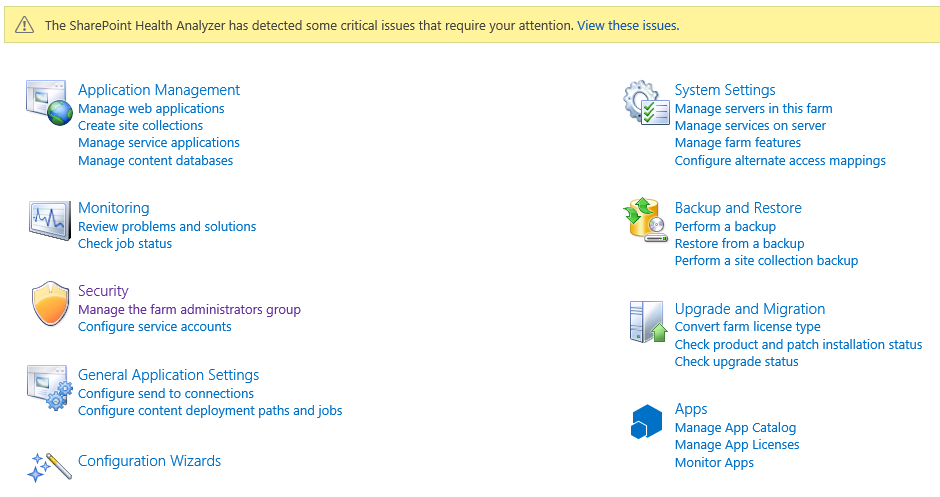
Upon opening of Central Administration, we are immediately presented with some issues highlighted in the yellow bar above the links:


After a short internet research, it is clear that some of these issues are encountered due to the use of the AutoInstaller.
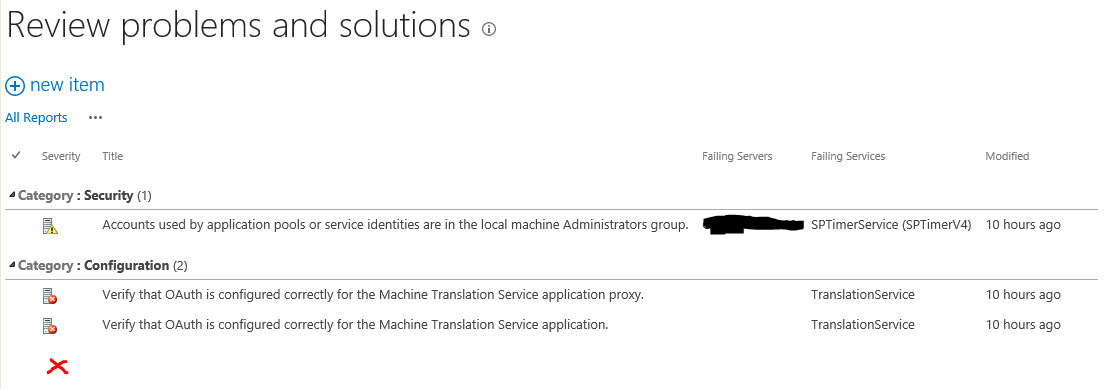
One of them is a configuration error resulting in 'Missing server side dependencies.'- see below:


The issue is caused by misconfiguration of a Search Service Application and it is fixed by navigating to the actual 'Search Administration page'. If like me, you received the following error:


- you have to just do what they say and go to the Central Admin and browse to Manage Service Applications. In there, you will find a link highlighted in red that you need to click to go to that page:


Another step required to eliminate 'Missing server side dependencies' error is to navigate to the Search Farm Dashboard page in the format: http:///SearchFarmDashBoard.aspx like in the picture below:


This time, we are able to display the page with no issues or requirement to open this page through Service Application links in Central Admin.
Now, we simply re-analyse the issue of 'Missing server side dependencies' to find out that the error is gone:


OK, there were other problems as you can see but for the time being, I will just ignore them and continue working on the system.

My plan was to have a one 'Portal' web application that will host managed path site collections for the respective departments in our company. That includes UK and US site collections. I was not separating them in different web applications. For reasons why I did that, just search Google for 'web application versus site collection'.
Second web application 'MySite Host' will not be used at the moment since there is no requirement for users' personal site collections. To be honest I was a bit surprised as to why this web application installed itself in the first place. This web app caused an error in one of the Autoinstaller scripts and we decided to get rid of it during our provision of an XML for SharePoint installation.
Anyway, it is there and it has no site collections yet. I might need it in the future.
Third web application was obviously a 'Cenral Administration'.

So ,what I actually had was a site collection created at the root attached to the database called 'SP_Content_Portal'.
Then, I planned to create some site collections but in their own content databases and with their explicit managed paths. The order was:

  1. Create a first bunch of content databases using Central Admin
  2. Stop all of them except the one I wanted to use with my new site collection I was about to create (Accounts UK in this example):

    3.   Create a new site collection using Central Admin:


   4.   On a 'Create Site Collection' page click 'Define Managed Path' link highlighted here in red:


   5.   Create a new managed path, in my case: /uk_accounts and make it Explicit if you do not want any
         new site collections to be created below that managed path. You can use a Wildcard if you do want
         that.

   6.   Now, on the 'Create Site Collection' page, refresh the page by pressing F5 and pick a newly created
         managed path. In my case it was /uk_accounts. In the picture below you will see /us_engineers as the
         screen was taken a bit later in the process.


   7.   After creating this site collection, it was automatically added to the database that was 'Started' at the
         time. You remember we stopped every database except 'SP_Content_AccountsUK'

You basically need to repeat the process with every new site collection and content database. So to re-cap, you:

  • create a content database with a meaningful name and in a consistent naming convention
  • stop every content database except the one you just created and want to attach to a new site collection
  • navigate to Central Admin and click create a new site collection
  • on that page click 'Define Managed Paths'
  • add meaningful, consistent path and come back to 'Create Site Collection' page
  • refresh the page and pick the newly created managed path
  • finish creating a site collection
  • enjoy having a site collection in the database you want

Today, I created 4 additional content databases and attached each of the newly created site collection to a corresponding content database. Every site collection has a meaningful and explicit managed path. I ended up with 5 site collection all together in a 'Portal' web application.
I know, I know! You say PowerShell! Well, I will leave PowerShell in peace for the minute. I am sure I will need it later...

  
Having done the above, I moved to the general configuration of the farm, going through the functions I wanted to implement. Stay tuned for updates of what has actually happened! 


Thursday, 27 June 2013

Gentle Intro to the scenario


It has been nearly a year since I am working for the company, who had asked me to sort out their mess in corporate data management, data life cycle, user collaboration and IT systems. They have implemented the system called Winman, which is another Enterprise Resource Planning software, especially useful in manufacturing, order processing, despatching, invoicing etc. This is where majority of business processes take place. It is fairly robust, it gets the job done, but it is not perfectly implemented though.
In addition, they use mapped drives for storing business unstructured data which is scattered all over the place.
Moreover (I know, it is quite a lot already), they have two separate instances of SharePoint for the UK and US branches of the business.
These are just OOTB SharePoint installations with default Shared Documents libraries containing folders and no real functionality. 

To date, I:
  • got to know the company;
  • conducted the user surveys;
  • developed new IT and data management policies;
  • researched and developed data and business records' retention schedules;
  • learned SharePoint as an ECM system;
  • provisionally concluded the information architecture in relation to SharePoint functionality;
  • decided that we will:
    • completely shut down the File Server for users;
    • remove two SharePoint instances (2007 & 2010 Foundation versions)
    • consolidate our corporate data on a one, unified platform (SP2013 Server)
    • bring the UK and the US into one, shared portal to minimise E-mail use
    • provision Remote BLOB store for archiving purposes and let users search archives in SharePoint
  • provisionally developed a pilot site for one of the company's departments.
Having gone through the pain of licensing and getting required software ready, on the day of 26 of June 2013, we have finally installed SharePoint 2013 Server on our corporate servers.

The next post will describe the process of SharePoint installation.

Further posts will be a reflection of what we actually do with our SharePoint system, how it performs, what sort of issues we encounter and everything else you can imagine in a day-to-day life of a quickly growing and successful company.

Stay tuned!