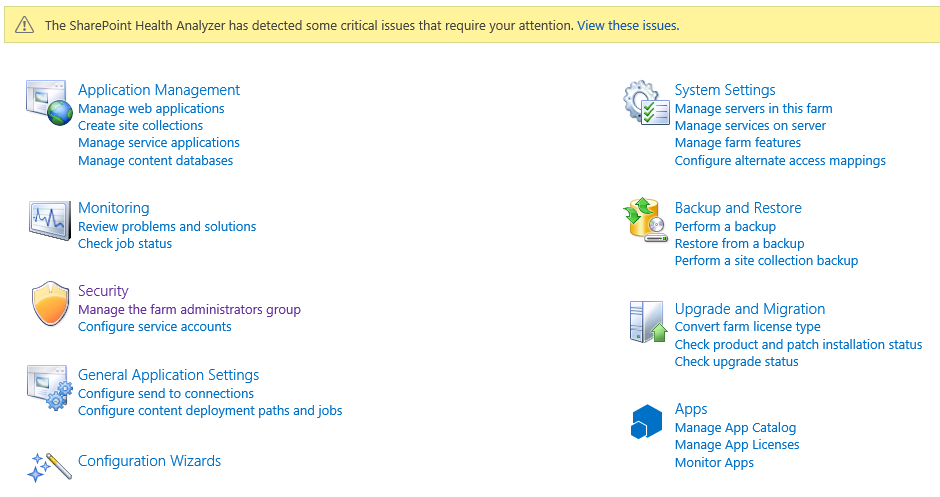
After a short internet research, it is clear that some of these issues are encountered due to the use of the AutoInstaller.
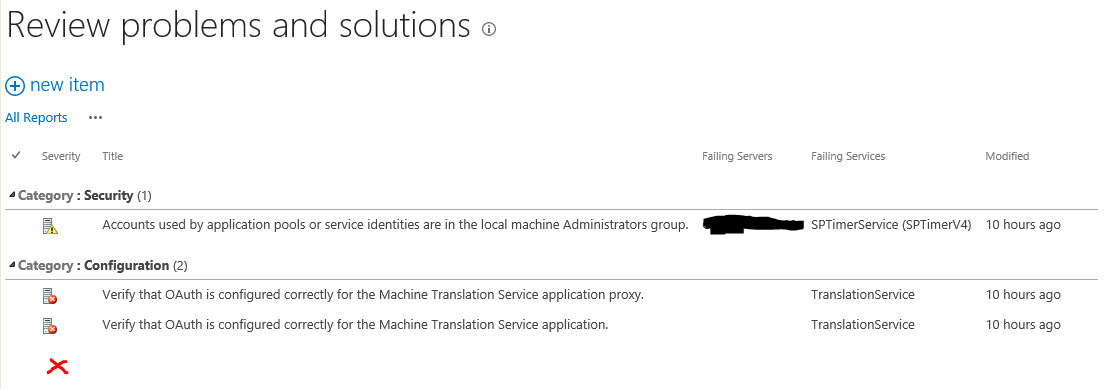
One of them is a configuration error resulting in 'Missing server side dependencies.'- see below:


- you have to just do what they say and go to the Central Admin and browse to Manage Service Applications. In there, you will find a link highlighted in red that you need to click to go to that page:

Another step required to eliminate 'Missing server side dependencies' error is to navigate to the Search Farm Dashboard page in the format: http://

This time, we are able to display the page with no issues or requirement to open this page through Service Application links in Central Admin.
Now, we simply re-analyse the issue of 'Missing server side dependencies' to find out that the error is gone:

My plan was to have a one 'Portal' web application that will host managed path site collections for the respective departments in our company. That includes UK and US site collections. I was not separating them in different web applications. For reasons why I did that, just search Google for 'web application versus site collection'.
Second web application 'MySite Host' will not be used at the moment since there is no requirement for users' personal site collections. To be honest I was a bit surprised as to why this web application installed itself in the first place. This web app caused an error in one of the Autoinstaller scripts and we decided to get rid of it during our provision of an XML for SharePoint installation.
Anyway, it is there and it has no site collections yet. I might need it in the future.
Third web application was obviously a 'Cenral Administration'.
So ,what I actually had was a site collection created at the root attached to the database called 'SP_Content_Portal'.
Then, I planned to create some site collections but in their own content databases and with their explicit managed paths. The order was:
- Create a first bunch of content databases using Central Admin
- Stop all of them except the one I wanted to use with my new site collection I was about to create (Accounts UK in this example):

3. Create a new site collection using Central Admin:

4. On a 'Create Site Collection' page click 'Define Managed Path' link highlighted here in red:

5. Create a new managed path, in my case: /uk_accounts and make it Explicit if you do not want any
new site collections to be created below that managed path. You can use a Wildcard if you do want
that.
6. Now, on the 'Create Site Collection' page, refresh the page by pressing F5 and pick a newly created
managed path. In my case it was /uk_accounts. In the picture below you will see /us_engineers as the
screen was taken a bit later in the process.

7. After creating this site collection, it was automatically added to the database that was 'Started' at the
time. You remember we stopped every database except 'SP_Content_AccountsUK'
You basically need to repeat the process with every new site collection and content database. So to re-cap, you:
- create a content database with a meaningful name and in a consistent naming convention
- stop every content database except the one you just created and want to attach to a new site collection
- navigate to Central Admin and click create a new site collection
- on that page click 'Define Managed Paths'
- add meaningful, consistent path and come back to 'Create Site Collection' page
- refresh the page and pick the newly created managed path
- finish creating a site collection
- enjoy having a site collection in the database you want
Today, I created 4 additional content databases and attached each of the newly created site collection to a corresponding content database. Every site collection has a meaningful and explicit managed path. I ended up with 5 site collection all together in a 'Portal' web application.
I know, I know! You say PowerShell! Well, I will leave PowerShell in peace for the minute. I am sure I will need it later...
I know, I know! You say PowerShell! Well, I will leave PowerShell in peace for the minute. I am sure I will need it later...

Having done the above, I moved to the general configuration of the farm, going through the functions I wanted to implement. Stay tuned for updates of what has actually happened!

