Thursday, 18 July 2013

SharePoint 2013 New file cannot be saved to a destination library

When SharePoint site is added to the trusted sites in IE and Trusted Sites' custom level includes 'Automatic logon with current user name and password' (see one of my previous posts), we might have messed up something in SharePoint - Office client association. Or maybe it is a Microsoft's bug on certain clients?
The situation is that when you click on a file already in the library to edit/open it- it opens up nicely in the client application without asking for credentials. Depending on the Library Settings, if you want to edit it, you might Check Out the file. We are fine here.
Similarly, when you Upload a file from your local machine into the Document Library, it is done without any problems (however it will not let you save the file under the name that already exist in the library unless you check to add another version of it). In that case users must ensure they upload files with names already changed!
Our real problem is when we click 'New Document', we are being re-directed to the client application based on the Library template, we create/edit the file, want to save it back to the Library and then - BOOM! Cannot do it! Client application offers to save the file locally and when you click 'Save & Send' to save it to a selected SharePoint Library- you will see a fancy error message 'Cannot save to: http://intranet.company.com' or something like that.

In order to fix that, you have to enable a WebClient service in Windows Services as per this blog post. On my machine (happens to be a Windows Server 2012 Datacenter) it is well hidden and it s called a Desktop Experience, see picture below:


It resolved the problem of not saving a file into the library the request of a new file originated from. Well. partially. Now SharePoint wants to authenticate you before it saves your file!
You remember we added our intranet to the trusted sites (you can leave in your intranet zone, whatever- it is after all a browser, not SharePoint configuration. The best way is to have a play and see which configuration- Intranet Zone or Trusted Sites works best). But why MS Office applications installed locally want credentials to upload files back to SharePoint? Microsoft says- "it is our fault" on Vista and 7 and they provide a hotfix.

In short, you have to add a registry value to your local registry (on a machine with Office Applications installed through which you are accessing SharePoint sites). Perform:

#################################################################################
  1. Click Start, type regedit in the Start Search box, and then press ENTER.
  2. Locate and then click the following registry subkey:
    HKEY_LOCAL_MACHINE\SYSTEM\CurrentControlSet\Services\WebClient\Parameters
  3. On the Edit menu, point to New, and then click Multi-String Value.
  4. Type AuthForwardServerList, and then press ENTER.
  5. On the Edit menu, click Modify.
  6. In the Value data box, type the URL of the server that hosts the Web share, and then click OK.

    Note You can also type a list of URLs in the Value data box. For more information, see the "Sample URL list" section in this article.
  7. Exit Registry Editor.
After this registry entry is created, the WebClient service will read the entry value. If the client computer tries to access a URL that matches any of the expressions in the list, the user credential will be sent successfully to authenticate the user, even if no proxy is configured.

Note You have to restart the WebClient service after you modify the registry.

Sample URL list

The following is a sample URL list:
https://*.Contoso.com
http://*.dns.live.com
*.microsoft.com
https://172.169.4.6
This URL list enables the WebClient service to send credentials through the following channels.

Copyright Microsoft Corporation

#################################################################################

You can use your Group Policy to apply the fix and add your intranet website to trusted sites in IE.

Stay tuned for new updates in SharePoint 2013 in production!  


SharePoint 2013 Navigation options

Ok, the time has come to provide some global navigation links to the users of our pilot site.
The immediate thought is to use Metadata Navigation- one of the great features in SP2013 (ease of use, ease of management and consistency). 
Unfortunately, in my scenario, not every user will have read access to every site/page/library in my site collection. Managed Metadata Navigation- as of 18/07/2013 does not provide security trimming! What is the point of users being able to see links to resources they cannot see? When they click on one of the links they do not have right to access, they will see an 'Access denied aspx'. I have a strange feeling that they will not like this.
According to one saying: 'Out of sight, out of mind'- we will have to stick to hard-coding our links in headers in Site Settings -> Navigation (in order to see this link in Site Settings you have to activate Publishing Infrastructure Features both in Site collection and site levels):


Unlike with using Metadata Navigation (up to 3-tier dynamic menu allowed), we will be limited to Headers (links of their own) and Links below them (2-tier dynamic menu):


Wednesday, 17 July 2013

SharePoint 2013 Disable Prompts for User Credentials when opening Office files

Probably most of us have experienced this! Very annoying!

The solution is to:

IE -> Tools -> Internet Options -> Security Tab -> Click on 'Local Intranet' -> Sites -> Make sure that 'Automatically detect intranet network' is checked.

Now switch to 'Trusted sites' -> Sites -> add your intranet site [if having one web application like me, just add the domain root e.g. http://intranet.company.com].
Staying in 'Trusted sites', click on 'Custom level...', scroll down to the bottom and check 'Automatic logon with current user name and password' as in picture below:


Annoying pop-ups for user credentials should no longer be coming up!

Friday, 12 July 2013

SharePoint 2013 Hiding Site Collection Home Tabs

If you have a Site collection's logo in a top left hand corner, it works as a link to the Home Page.
Further, if you require a number of links to other sites in your top navigation menu, you could actually do with hiding this name tab menu so you have more room for adding links to the top navigation bar.


As per suggestions as well as due to my previous experience with SP2010 Server, I tried to edit a core CSS file by adding the following code to it. 

.s4-tn li.static $gt; a{
display: none !important;
}
.s4-tn li.static $gt; ul a{
display: block !important;
}

It worked like a charm in SP2010. In SP2013 it did not for me!
So I injected a following javascript into the page in Content Editor Web Part:


-where 'UK Accounts' was used instead of 'Home' as it is the name of my first home tab to hide. This approach is just looking for a text on the page and it hides it. You probably gather, it has some disadvantages too.


As you can see in the picture above, the phrase/name we are hiding on a page is also removed from Titles of web parts (e.g. Calendar), subjects names of the discussion posts (note a doted red line where 'UK Accounts' is present in the main body of a post- just the subject title is removed).
Overall, it is not very good approach don't you think? Especially when the phrase 'UK Accounts' may be used for other objects available on that page.
Going back to the original naming in SharePoint, the word 'Home' sounds like an appropriate word to be used for hiding a root site tab. I do not think users and admins will use this word to refer to any of their work.
So I changed the name of the home page to 'Home', then I modified my javascript to include 'Home' instead of 'UK Accounts'.
This is the result:


Part of the site collection logo contains a reference to the actual site collection so users will always know they are on the 'UK Accounts' pages.
When you dive deeper into the Site Collection pages, respective sites' root pages names would have to stay unchanged. They can no longer  be changed to 'Home' because users would again see UK Accounts - Home as opposed to UK Accounts - UK Budget for example on a Logo-Page title level.

   
Just in case, I posted in an MS SharePoint forum to ask whether there is someone out there willing to help explaining the CSS route as opposed to Javascript for hiding a home tab in SP2013. I also highlighted disadvantages of using javascript in my scenario. Read my comment to the first reply in the thread.


Friday, 5 July 2013

SharePoint Server 2013 Blob Cache

According to another very good practice when dealing with SharePoint Server 2013, I increased the size of a BlobCache in every web application and moved the BlobCache file outside the system drive.

In our case, we created an E:\ drive on which we stored our IIS, ULS and Usage logs as well as the Search Index to further ease-off the pressure from C:\.


I also created a 'BlobCache' folder and subdirectories for each web application in the farm, including Central Administration.

 
Then, I navigated to the web.config file of each web application, and opened it with Notepad.
In each file I pointed to the new directory created and increased the BlobCache size from 10 (GB) to the amount required:


As a side note: I noticed that 'Automatic Updates' were turned off for our Windows 2012 DataCenter.
I turned this on:


Stay tuned for more Sharepoint 2013 in real company!

SharePoint 2013 in production- wake-up scripts.

I continue to blog about what I am doing and how I am configuring SharePoint Server 2013 in our real world company.

I think everybody knows that according to Windows Server 2012 default behaviour, all the application pools will recycle overnight. You can obviously tweak these setting but I think it is still a good practice to let the application pools recycle- weather based on fixed time intervals, memory or specific time.


This will have significant impact on how fast the SharePoint Server 2013 pages will load up first thing in the morning.
Since we operate in the UK and US (6 hours difference) and our system must be responsive more or less 24/7, we still had to think about a good time to let our pools recycle. We decided that 4 am UK time (10 pm US time) would be satisfactory, so I set that up in the IIS Manager.

A very good and neat script provided by Todd Klindt takes advantage of the new features in PowerShell v3 in SharePoint 2013 and takes warming-up SharePoint to just two lines of code:

Get-SPWebApplication -IncludeCentralAdministration | ForEach-Object { Invoke-WebRequest $_.url -UseDefaultCredentials -UseBasicParsing }

In this example, Central Admin web application gets warmed up too.

Make sure you have a site collection in every Web Application otherwise the script will spit out some errors like in my case. It seemed to wake up the remaining Web Application (already populated with site collections) but my comparison results were not spectacular. Because I do not like red colour in my PowerShell window and I wanted to have an absolute certainty that this in fact works, I quickly created a host site collection in my MySite web application and the script ran OK. Now the users have a platform to create their personal sites (for which I also set up a quota of 2048MB) and take advantage of social features in SharePoint Server 2013. 'Quickly', because I have not finished provisioning of User Profiles Service Application as the process is complex and require a list of people from AD to which I do not have access yet.
[See details of how to accomplish this and step-by-step guide here. In addition, if you want other site collections in other web applications to be able to consume a User Profile Service Application used in My Site (enterprise wide social features e.g. hashtags), you have to connect each web application to that User Profile Service Application: see TechNet article outlining this].

My script to warm-up Sharepoint Server 2013 should run with no errors. It ran. Once. Then I was getting this annoying error after recycling my web applications again to further test the script:

Invoke-WebRequest : The remote server returned an error: (500) Internal Server
Error.
At line:1 char:41
+ Get-SPWebApplication | ForEach-Object { Invoke-WebRequest $_.url
-UseDefaultCred ...

I knew it is due to MySite web application that caused problems from the very start of our SharePoint 2013 installation.  When navigating to the root site of this site collection in the browser- unexpected errors occurred so it must have caused more harm than good when running our script.
I deleted the My site host site collection because it was giving me more errors like 401 Unauthorised, 500 Internal Server Error.

I came back in the morning after pools have recycled, re-ran the script and I got this:

Invoke-WebRequest : HTTP/1.1 200 OK Server: Microsoft-IIS/8.0 Date: Fri, 05
Jul 2013 07:46:00 GMT Connection: close
At line:1 char:41
+ Get-SPWebApplication | ForEach-Object { Invoke-WebRequest $_.url
-UseDefaultCred ...
+
~~~~~~~~~~~~~~~~~~~~~~~~~~~~~~~~~~~~~~~~
    + CategoryInfo          : InvalidOperation: (System.Net.HttpWebRequest:Htt
   pWebRequest) [Invoke-WebRequest], WebException
    + FullyQualifiedErrorId : WebCmdletWebResponseException,Microsoft.PowerShe
   ll.Commands.InvokeWebRequestCommand

The issue is currently with Todd Klindt on his blog. Maybe he can shed some light on what is actually wrong with the script and my configuration.

Just you know what are we even fighting for, here are some test results showing you how slow and how fast SharePoint Server 2013 can be when it is needed by e.g. most important people in the organisation.
Note: the results are not accurate to the every millisecond. Times are taken using a Stopwatch on the phone but are still very indicative.

Time needed to access 'cold' SharePoint 2013 root site after successful login:


Time needed to access 'warmed-up' SharePoint 20013 root site after successful login:


I think we all see that the matter is worth pursuing.

Since the script is not running 100% OK in our case, I will keep you updated on any fixing activities I may do (hopefully with some help from Todd Klindt).

EDITION- 30 JAN 2014

Finally got a working script here: SPWakeUp. You might want to run it as SP_Farm. I tried with an SP_Admin (daily administration of SharePoint) but it spat out couple of irrelevant, but annoying errors.

Schedule it with Task scheduler to tickle SharePoint sites in the morning and maybe every 15-20 minutes before pages go to sleep ;). Good luck.


Tuesday, 2 July 2013

SharePoint 2013 post installation configuration

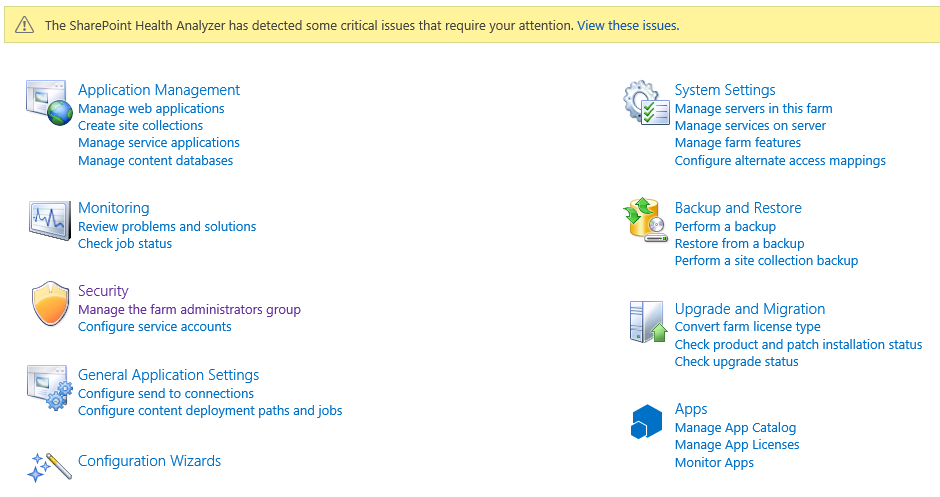
Upon opening of Central Administration, we are immediately presented with some issues highlighted in the yellow bar above the links:


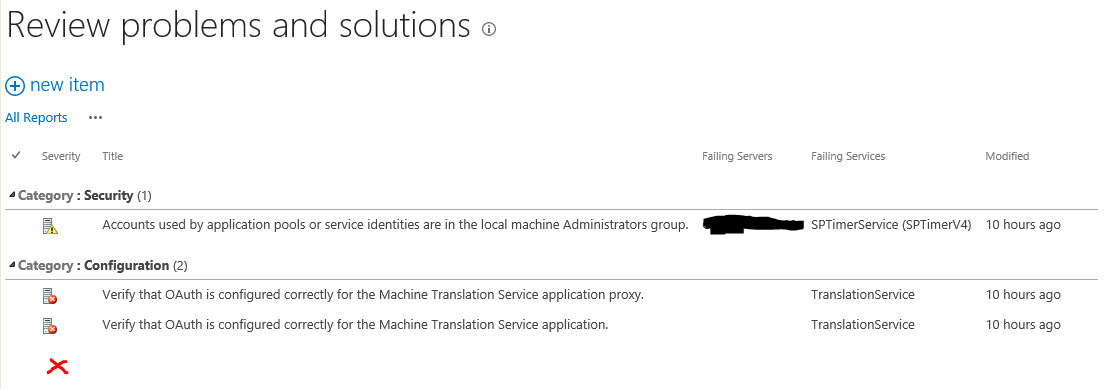
After a short internet research, it is clear that some of these issues are encountered due to the use of the AutoInstaller.
One of them is a configuration error resulting in 'Missing server side dependencies.'- see below:


The issue is caused by misconfiguration of a Search Service Application and it is fixed by navigating to the actual 'Search Administration page'. If like me, you received the following error:


- you have to just do what they say and go to the Central Admin and browse to Manage Service Applications. In there, you will find a link highlighted in red that you need to click to go to that page:


Another step required to eliminate 'Missing server side dependencies' error is to navigate to the Search Farm Dashboard page in the format: http:///SearchFarmDashBoard.aspx like in the picture below:


This time, we are able to display the page with no issues or requirement to open this page through Service Application links in Central Admin.
Now, we simply re-analyse the issue of 'Missing server side dependencies' to find out that the error is gone:


OK, there were other problems as you can see but for the time being, I will just ignore them and continue working on the system.

My plan was to have a one 'Portal' web application that will host managed path site collections for the respective departments in our company. That includes UK and US site collections. I was not separating them in different web applications. For reasons why I did that, just search Google for 'web application versus site collection'.
Second web application 'MySite Host' will not be used at the moment since there is no requirement for users' personal site collections. To be honest I was a bit surprised as to why this web application installed itself in the first place. This web app caused an error in one of the Autoinstaller scripts and we decided to get rid of it during our provision of an XML for SharePoint installation.
Anyway, it is there and it has no site collections yet. I might need it in the future.
Third web application was obviously a 'Cenral Administration'.

So ,what I actually had was a site collection created at the root attached to the database called 'SP_Content_Portal'.
Then, I planned to create some site collections but in their own content databases and with their explicit managed paths. The order was:

  1. Create a first bunch of content databases using Central Admin
  2. Stop all of them except the one I wanted to use with my new site collection I was about to create (Accounts UK in this example):

    3.   Create a new site collection using Central Admin:


   4.   On a 'Create Site Collection' page click 'Define Managed Path' link highlighted here in red:


   5.   Create a new managed path, in my case: /uk_accounts and make it Explicit if you do not want any
         new site collections to be created below that managed path. You can use a Wildcard if you do want
         that.

   6.   Now, on the 'Create Site Collection' page, refresh the page by pressing F5 and pick a newly created
         managed path. In my case it was /uk_accounts. In the picture below you will see /us_engineers as the
         screen was taken a bit later in the process.


   7.   After creating this site collection, it was automatically added to the database that was 'Started' at the
         time. You remember we stopped every database except 'SP_Content_AccountsUK'

You basically need to repeat the process with every new site collection and content database. So to re-cap, you:

  • create a content database with a meaningful name and in a consistent naming convention
  • stop every content database except the one you just created and want to attach to a new site collection
  • navigate to Central Admin and click create a new site collection
  • on that page click 'Define Managed Paths'
  • add meaningful, consistent path and come back to 'Create Site Collection' page
  • refresh the page and pick the newly created managed path
  • finish creating a site collection
  • enjoy having a site collection in the database you want

Today, I created 4 additional content databases and attached each of the newly created site collection to a corresponding content database. Every site collection has a meaningful and explicit managed path. I ended up with 5 site collection all together in a 'Portal' web application.
I know, I know! You say PowerShell! Well, I will leave PowerShell in peace for the minute. I am sure I will need it later...

  
Having done the above, I moved to the general configuration of the farm, going through the functions I wanted to implement. Stay tuned for updates of what has actually happened!